

Blog /
Get Started: Manage & Process Orders
Get Started: Manage & Process Orders
 Louie · August 27, 2026
Get Started: Manage & Process Orders
Orders are flowing in. Here's how to manage them, set up processing parameters, and send jobs straight to your xTool machine.
Your Order Dashboard
Go to Order in the left sidebar. Every order from every channel — your Customthings store, Shopify, Etsy, Wix, WooCommerce — appears here in one unified list.
Each order shows:
- Which product the customer selected.
- The design file — whether a custom creation or a standard asset, download it instantly or launch it in xTool Studio for one-click processing.
- A pickup code — a unique code the customer uses to collect their item (for in-person scenarios)
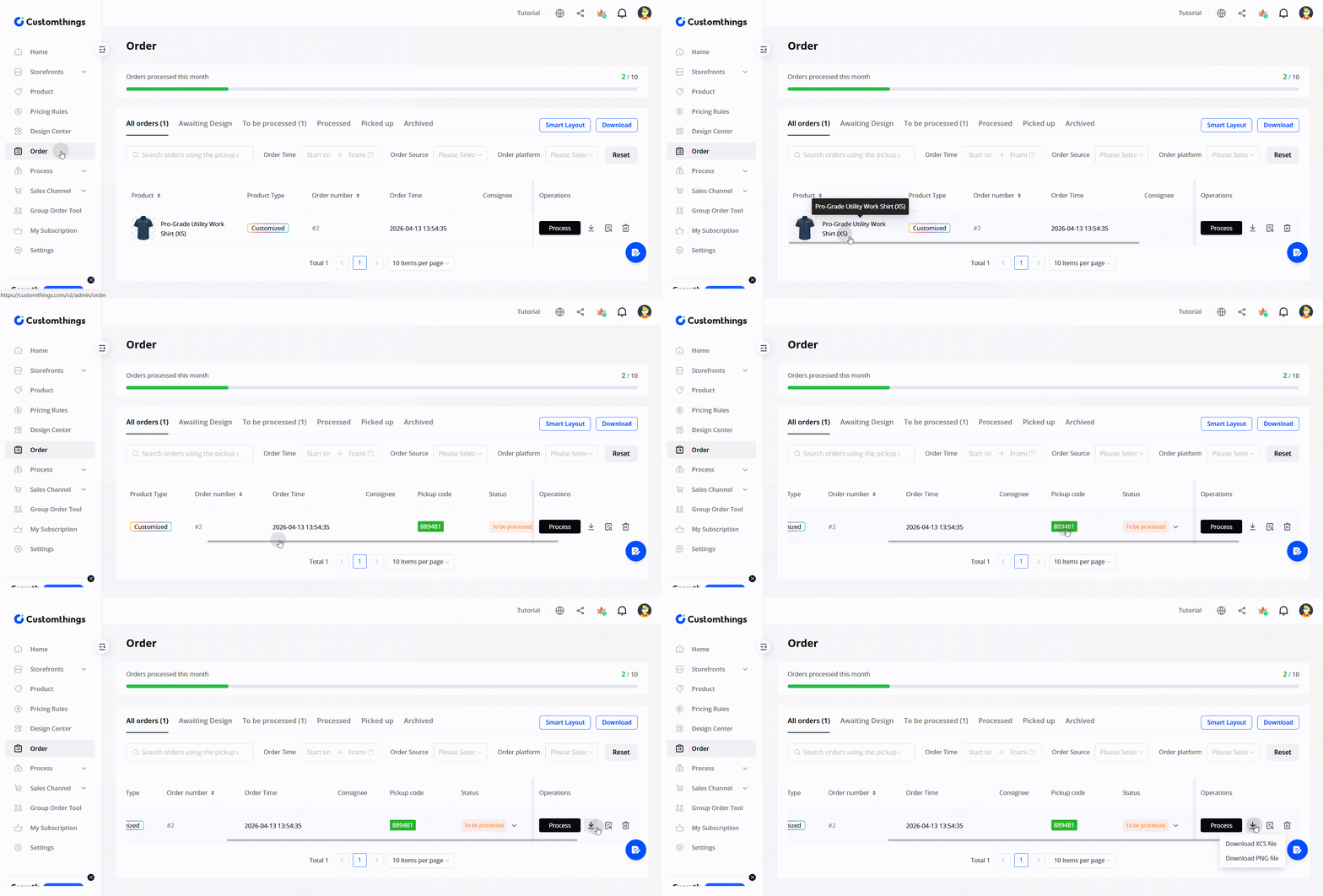
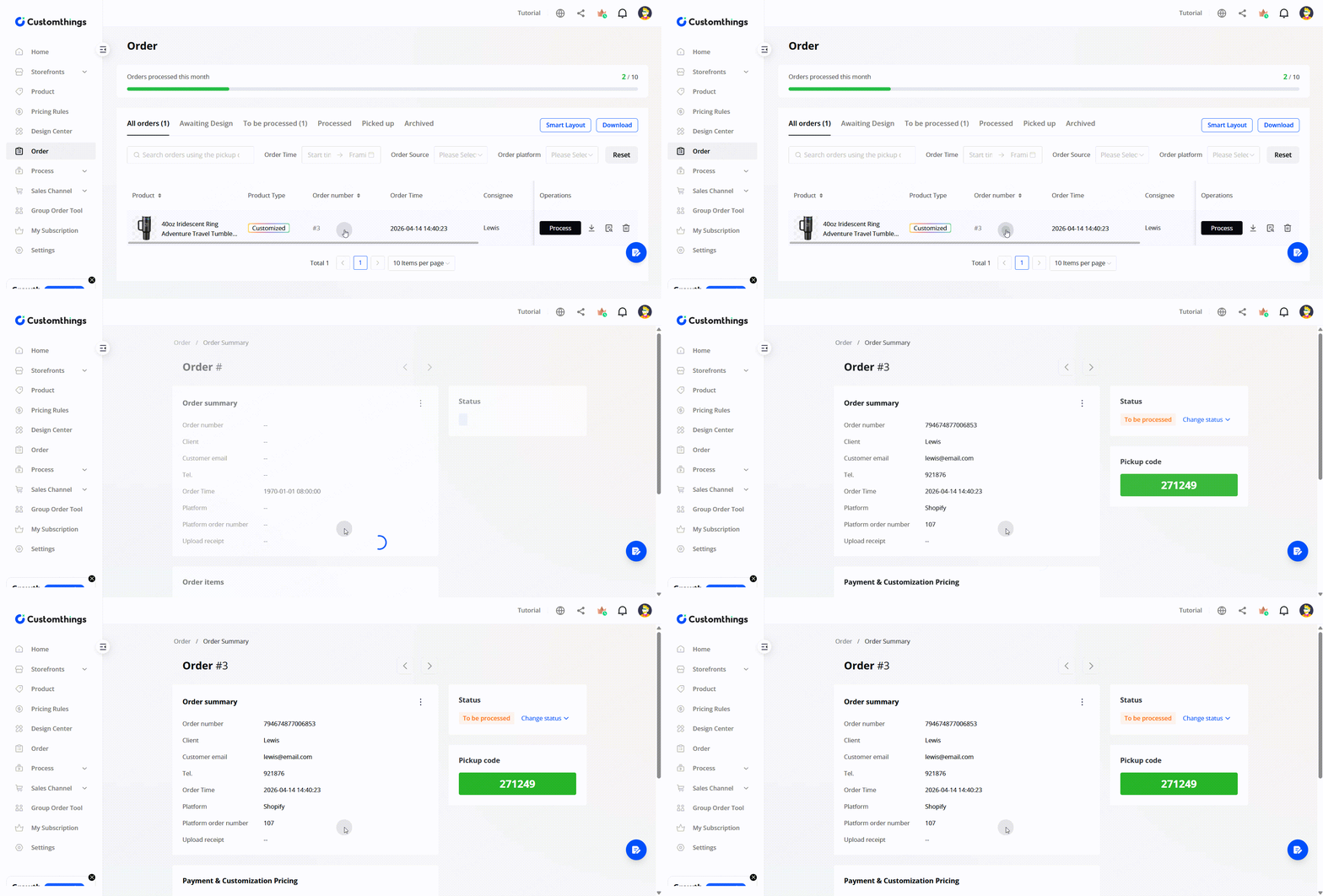
Click into any order for full details, including the customer's design preview.
Order Status Management
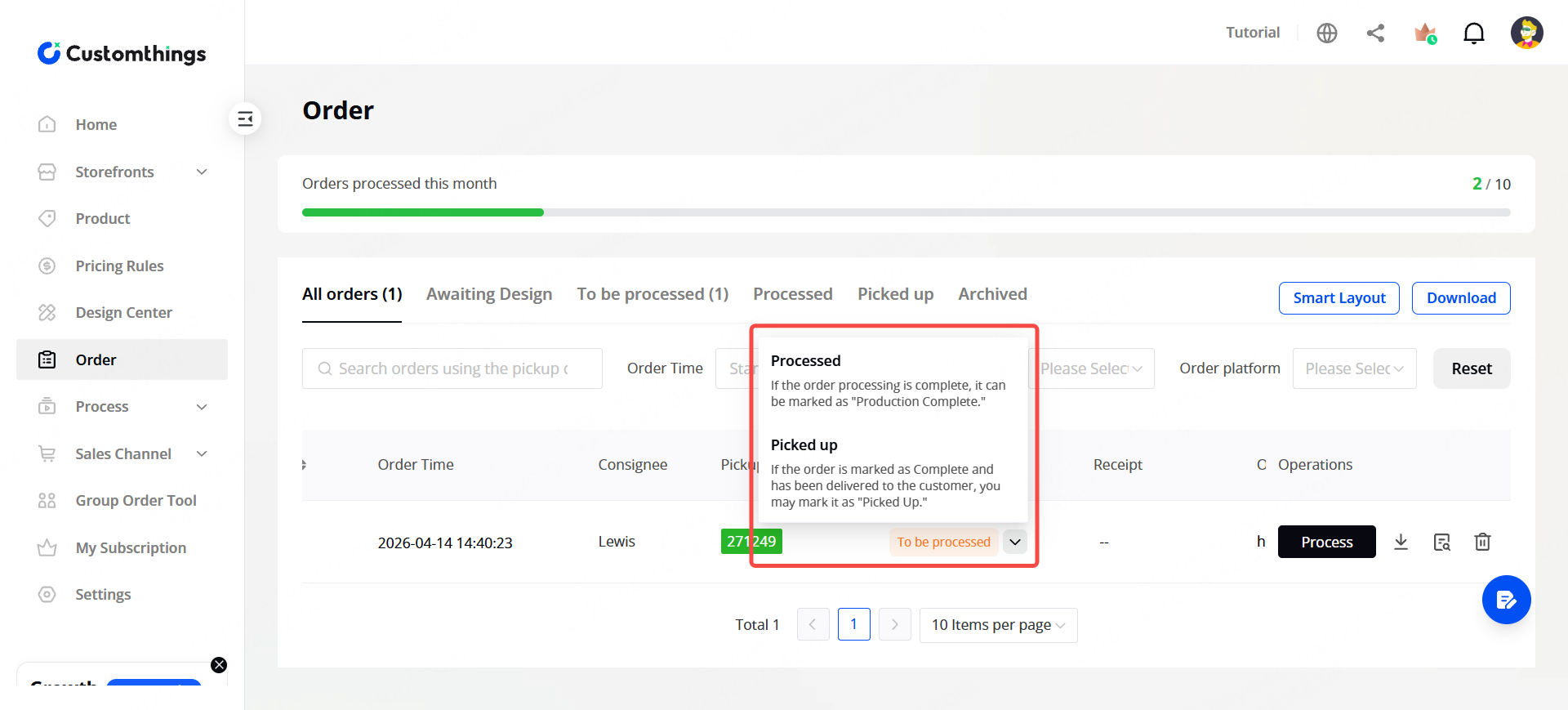
Update each order's status as you work through it:
- To be processed — order received, not yet processed
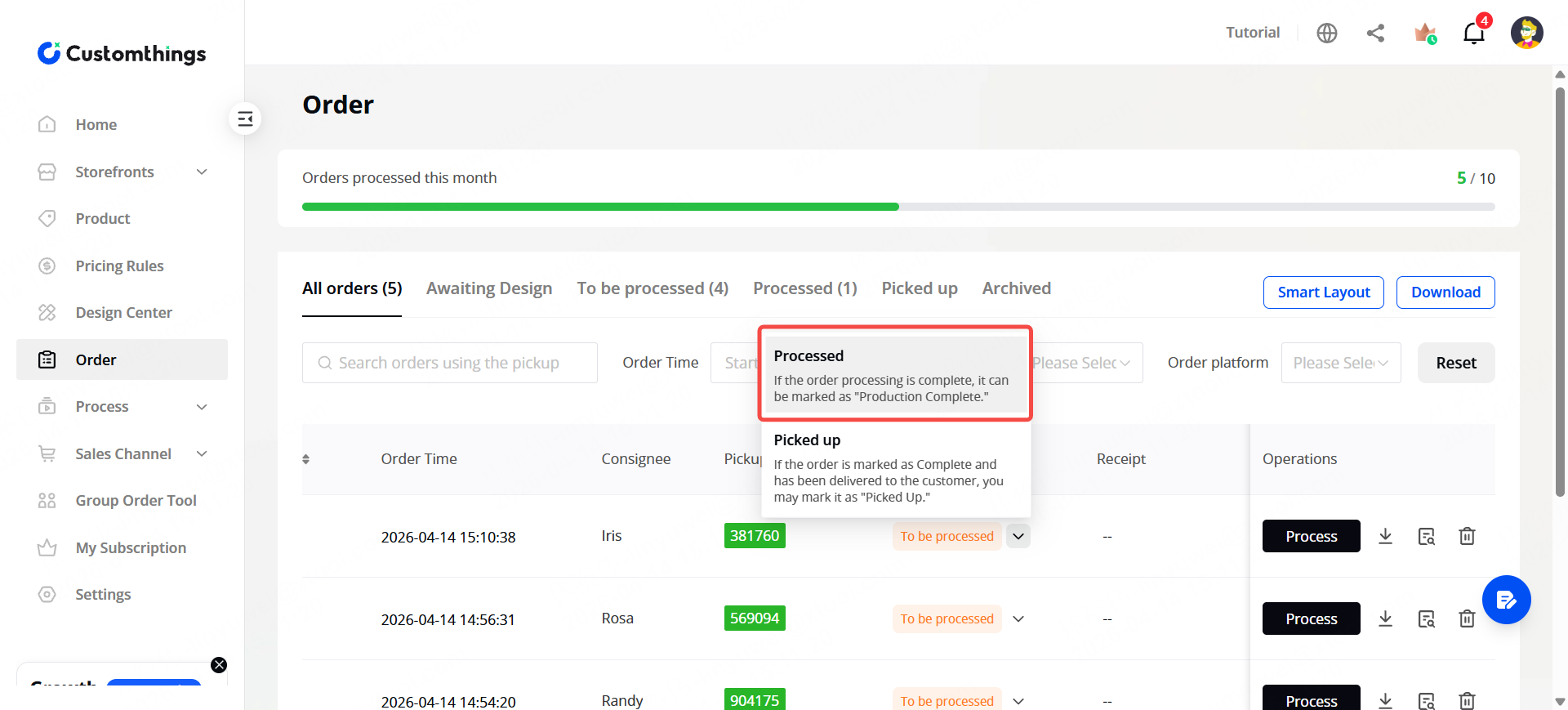
- Processed — done and waiting for the customer
- Picked up — picked up by the customer
Status changes are simple — just select the new status from the order detail page.
Setting Up Processing Parameters
Before you can send orders to your xTool machine, each product needs to have its processing parameters configured. Go to Process in the left sidebar, or configure directly within each product's settings.
Three ways to set parameters:
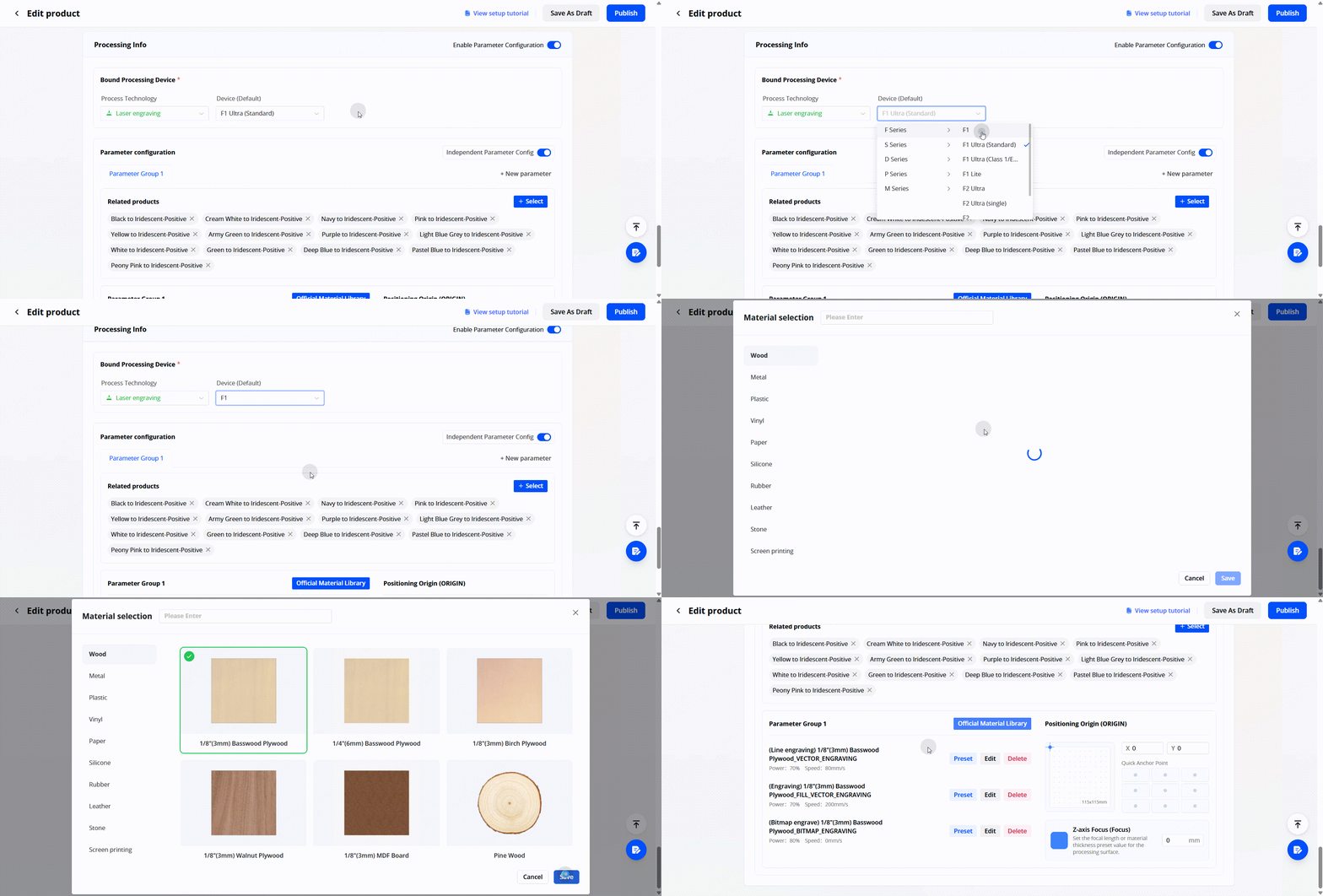
Option A: One-click official parameters (recommended for beginners)
In the product settings, select your xTool machine model, then choose the material type (e.g., Standard Steel, Basswood). Customthings pulls the officially recommended parameters — power, speed, frequency — automatically.
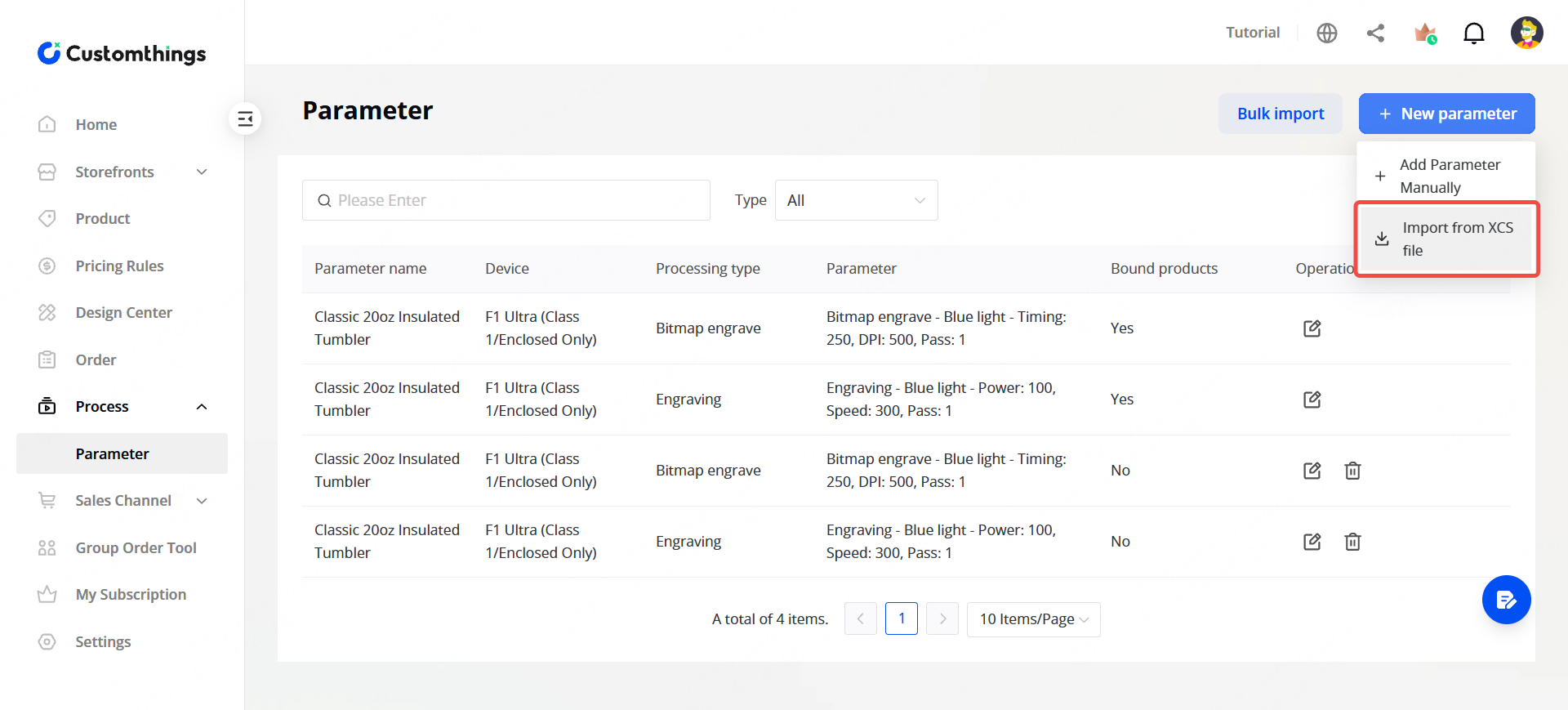
Option B: Import from an XCS file
If you've already dialed in your settings in xTool Studio, export the XCS file and import it into Customthings. The file carries all processing parameters with it.
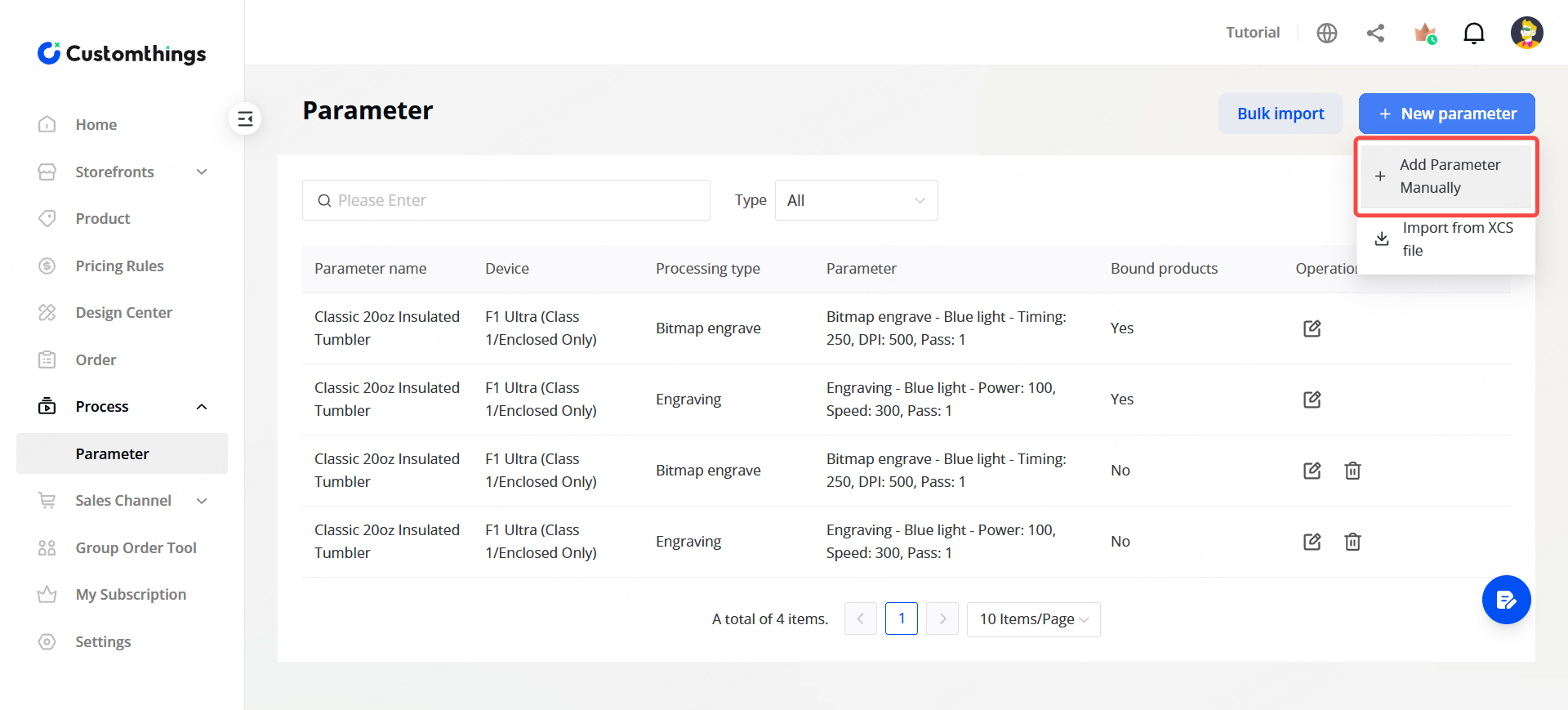
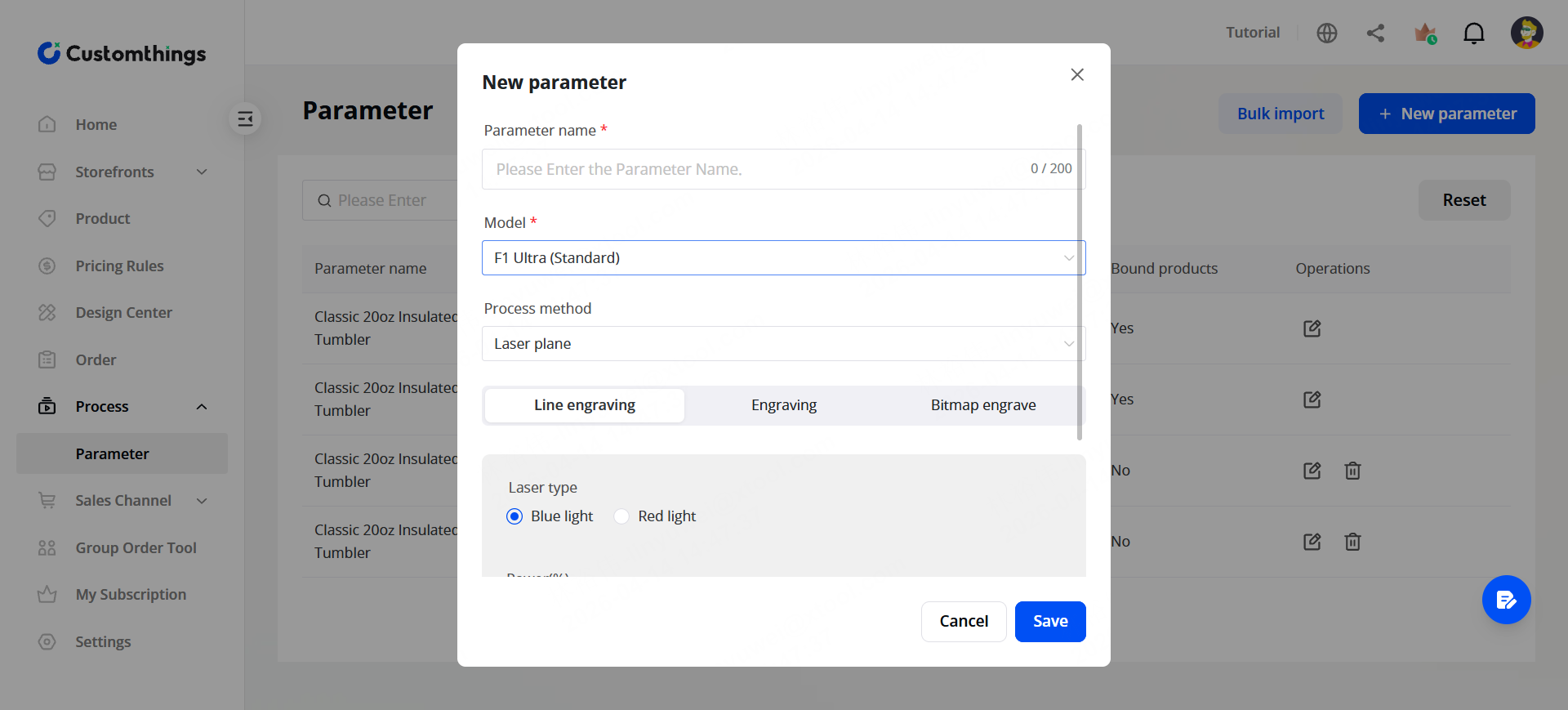
Option C: Manual entry
Enter laser engraving or printing parameters by hand — useful if you have highly specific settings for custom materials.
Option D: Direct processing in xTool Studio
Skip parameter configuration in Customthings entirely. Launch your design file directly in xTool Studio to manually adjust settings or fine-tune your XCS file right before processing.
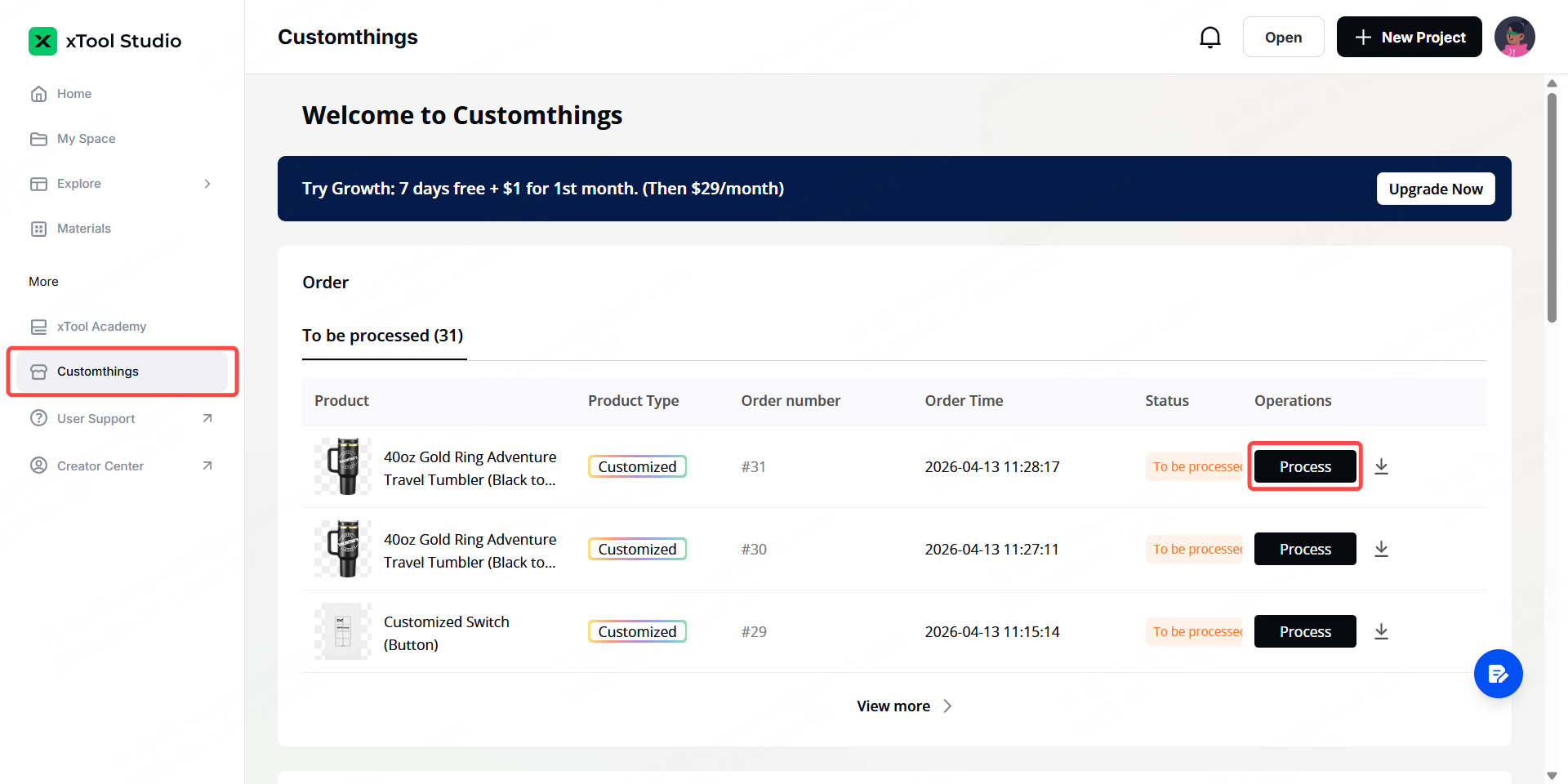
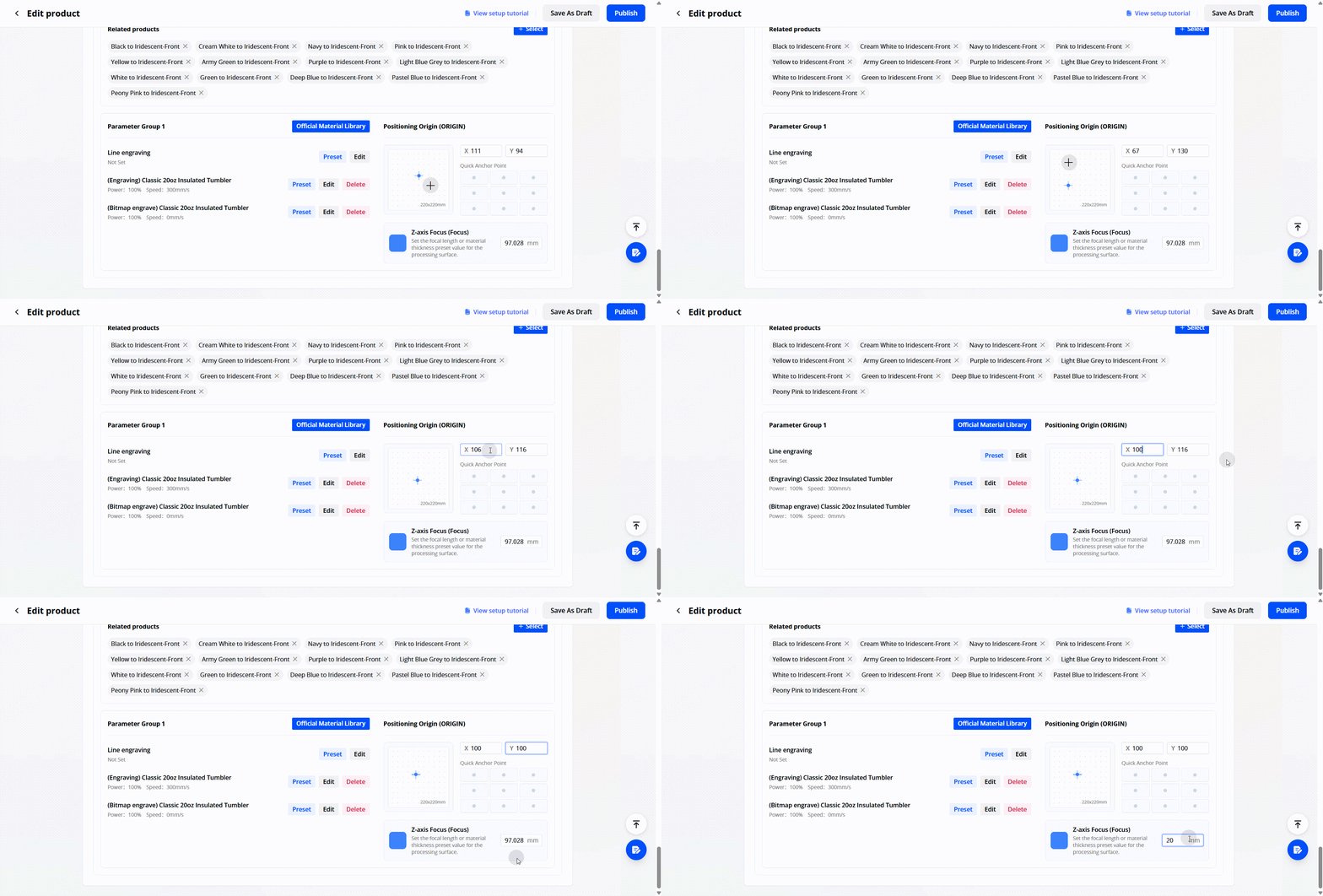
Processing start position (optional)
You can also set where the design appears on the xTool Studio canvas when imported. This is helpful if you use a jig or fixture with a fixed placement — set it once, and every order lands in the right spot.
Smart Layout (for Print Orders)
If you process print orders (e.g., DTF transfers), the Smart Layout feature helps you save material.
How it works:
- Select multiple print orders from your Order list
- Set the dimensions of your transfer film
- Customthings automatically arranges all designs on the film for optimal material usage
- Export the layout to xTool Studio with one click, or download it
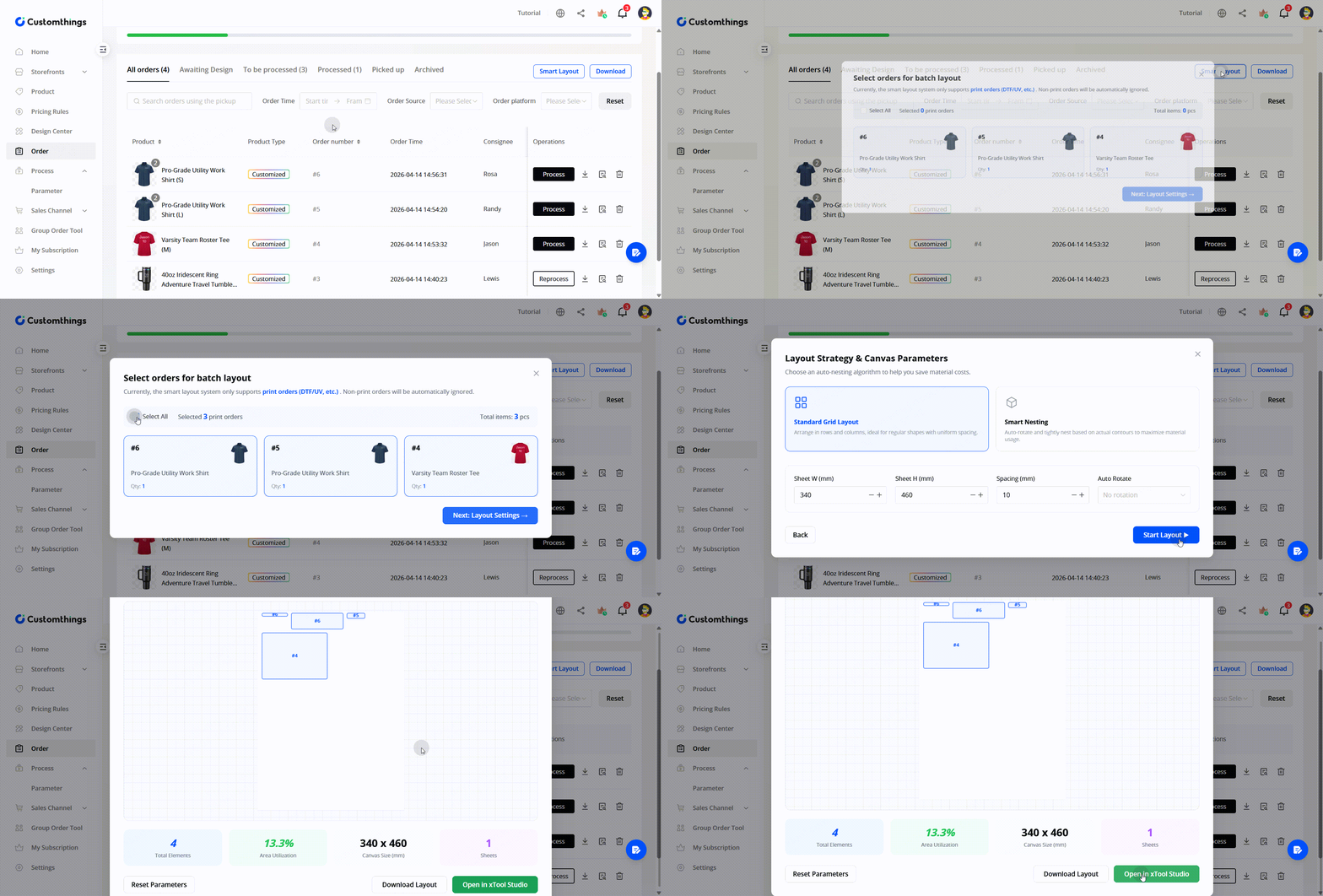
This is especially valuable when you're batching orders — instead of printing each design on a separate sheet, Smart Layout packs them together to minimize waste.
The One-Click Production Flow
There are 2 paths from order to finished product.
1️⃣ Option A: Dashboard-to-Studio Workflow
- An order arrives in your dashboard
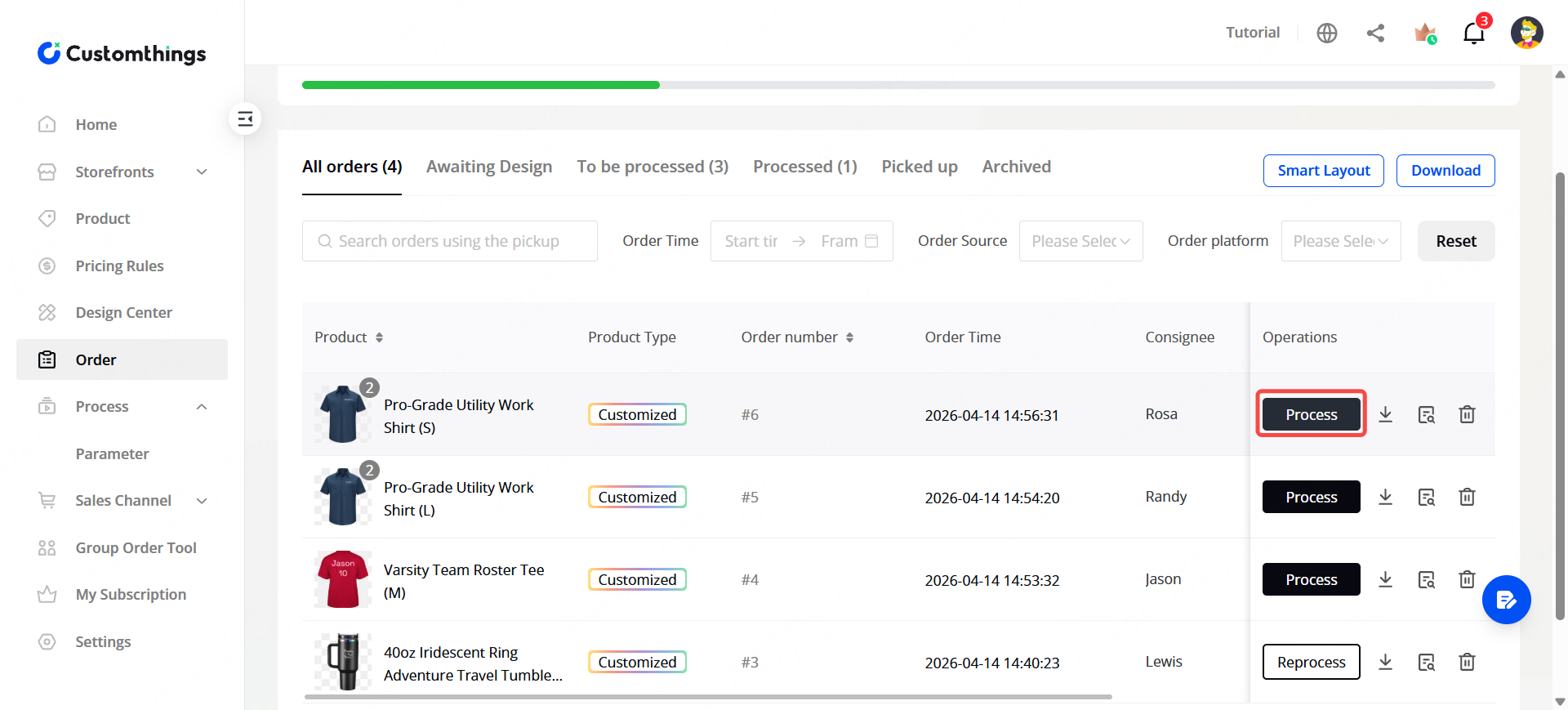
- You open the order and review the customer's design
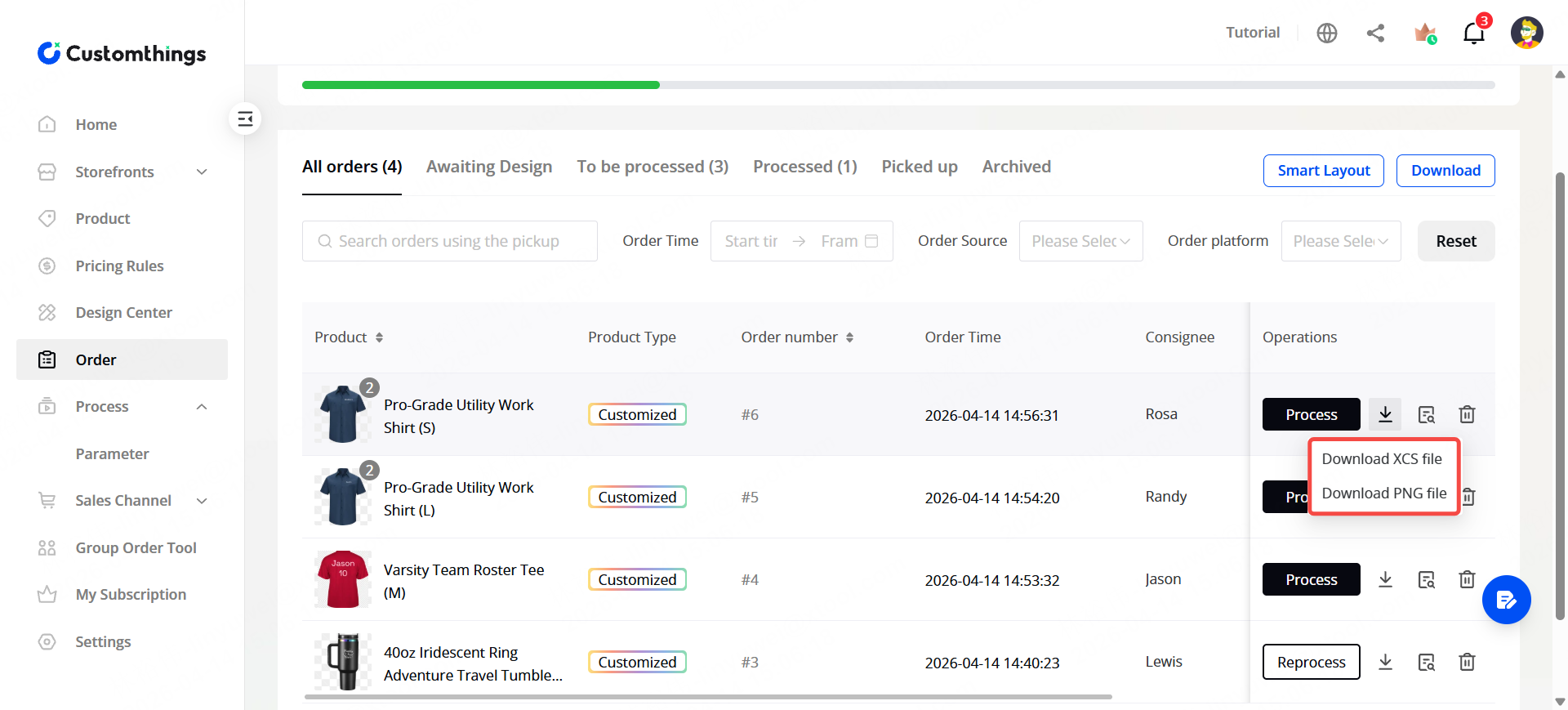
- Click Process to open xTool Studio — the design file and all processing parameters transfer automatically.
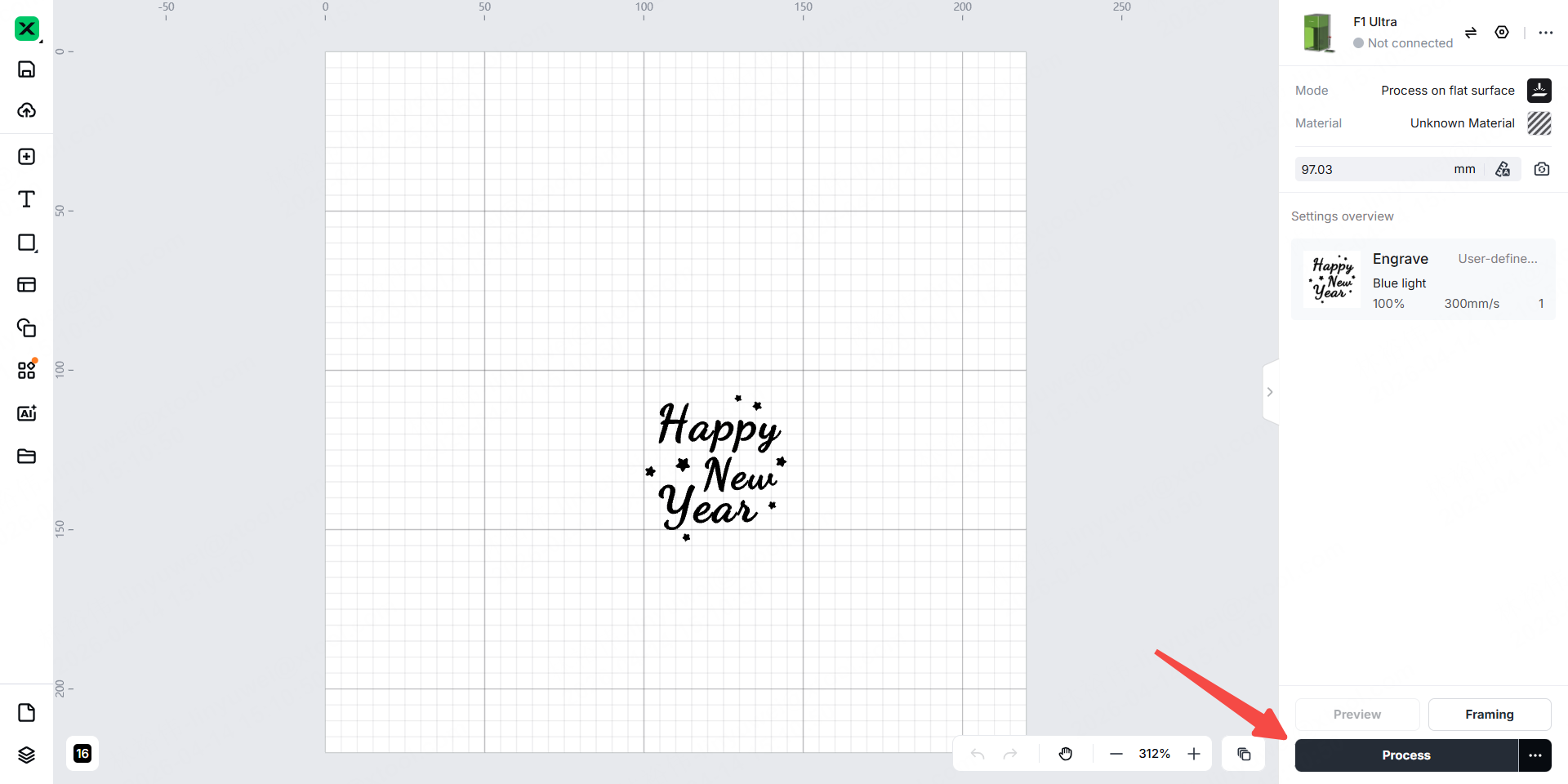
- In xTool Studio, hit Process to let your machine run the job.
- Back in Customthings, update the order status to Processed.
- The customer picks up using their pickup code.
2️⃣Option B: Direct Workflow via xTool Studio
1. Log in to your Customthings account directly within xTool Studio.
2. Open the Customthings order panel in the left sidebar to start processing directly.
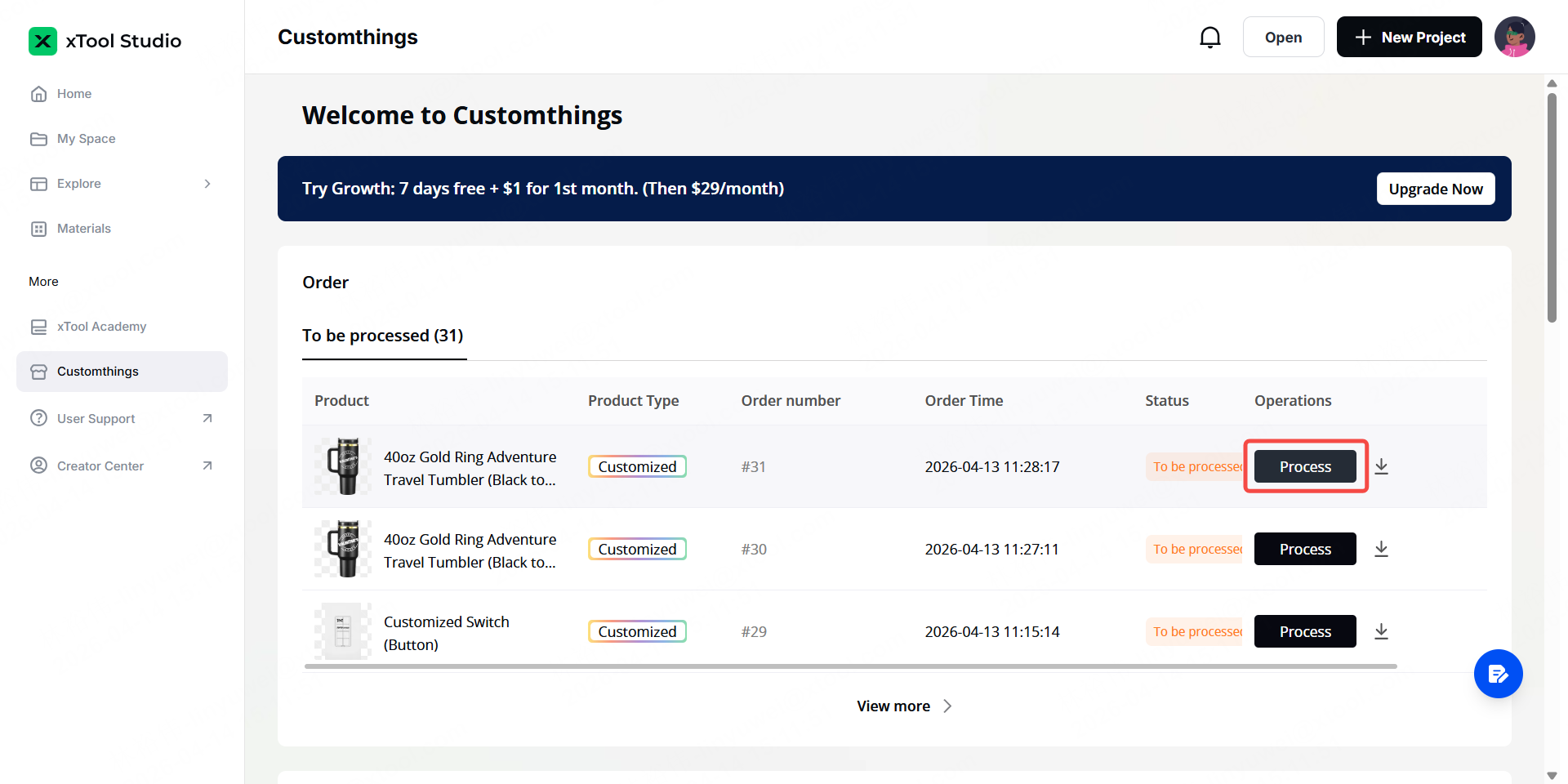
No re-entering parameters. No exporting and re-importing files. Configure once per product, and every order after that flows through with one click.
Tips
- Set up processing parameters when you create the product, not when the first order comes in. This way you're ready to produce immediately.
- Use official parameters if you're unsure. They're tested by xTool for each material and machine combination — a reliable starting point you can fine-tune later.
- Smart Layout pays for itself fast if you do any volume of print orders. Even 5–10 orders batched together can save significant transfer film.
You're all set! You've configured your store, created products, set up designs, connected sales channels, and now you know how to process orders. Start selling and making.
For questions or feedback, reach out through the in-app support or join the Customthings Insiders community🎈
2