
 wendilanxtool · August 04, 2026
What a Bundle Set Is
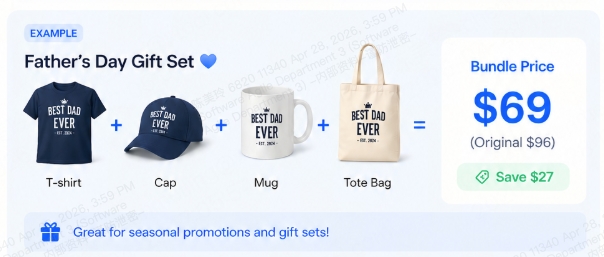
A Bundle Set is a parent product that links to several published products. Customers see one listing, pick the variant they want, customize any items inside the bundle that need it, and check out with everything in a single order.
This works well if you sell gift sets, matching pairs, or curated collections, and want a higher cart value without rebuilding products you've already set up.
Before You Start
- The products you want to bundle must already be published. Drafts won't show up in the picker.
- You can mix Standard and Customized products inside one bundle. Standard products skip the customization step at checkout. Customized products require the customer to design them before they can place the order.
Create a Bundle Set
Step 1. Open the bundle creator
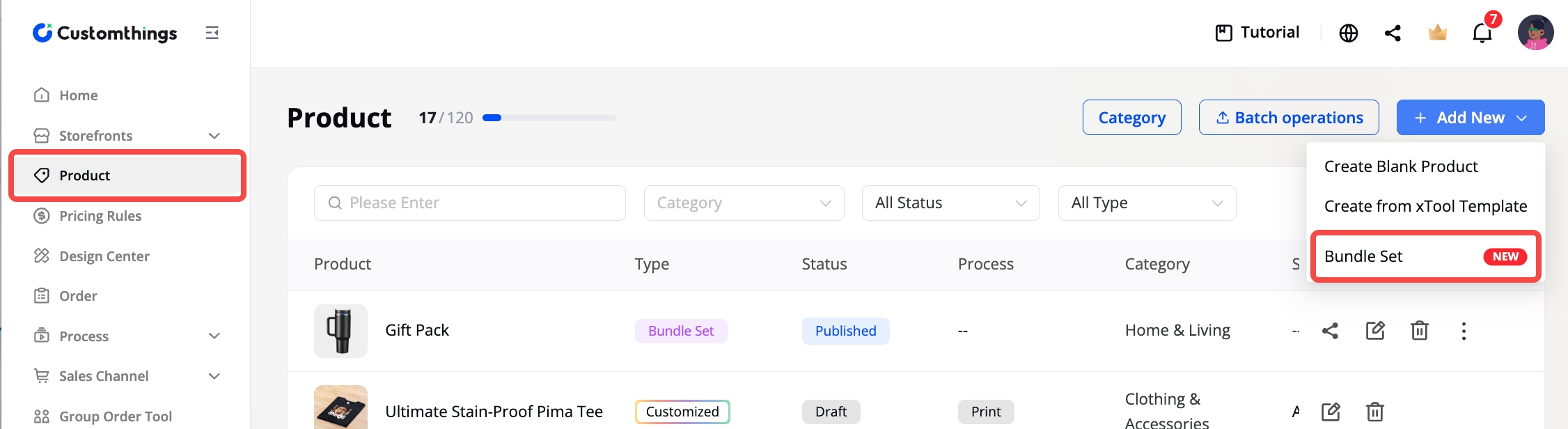
- Go to Product in the left sidebar.
- Click + Add New and select Bundle Set from the dropdown.
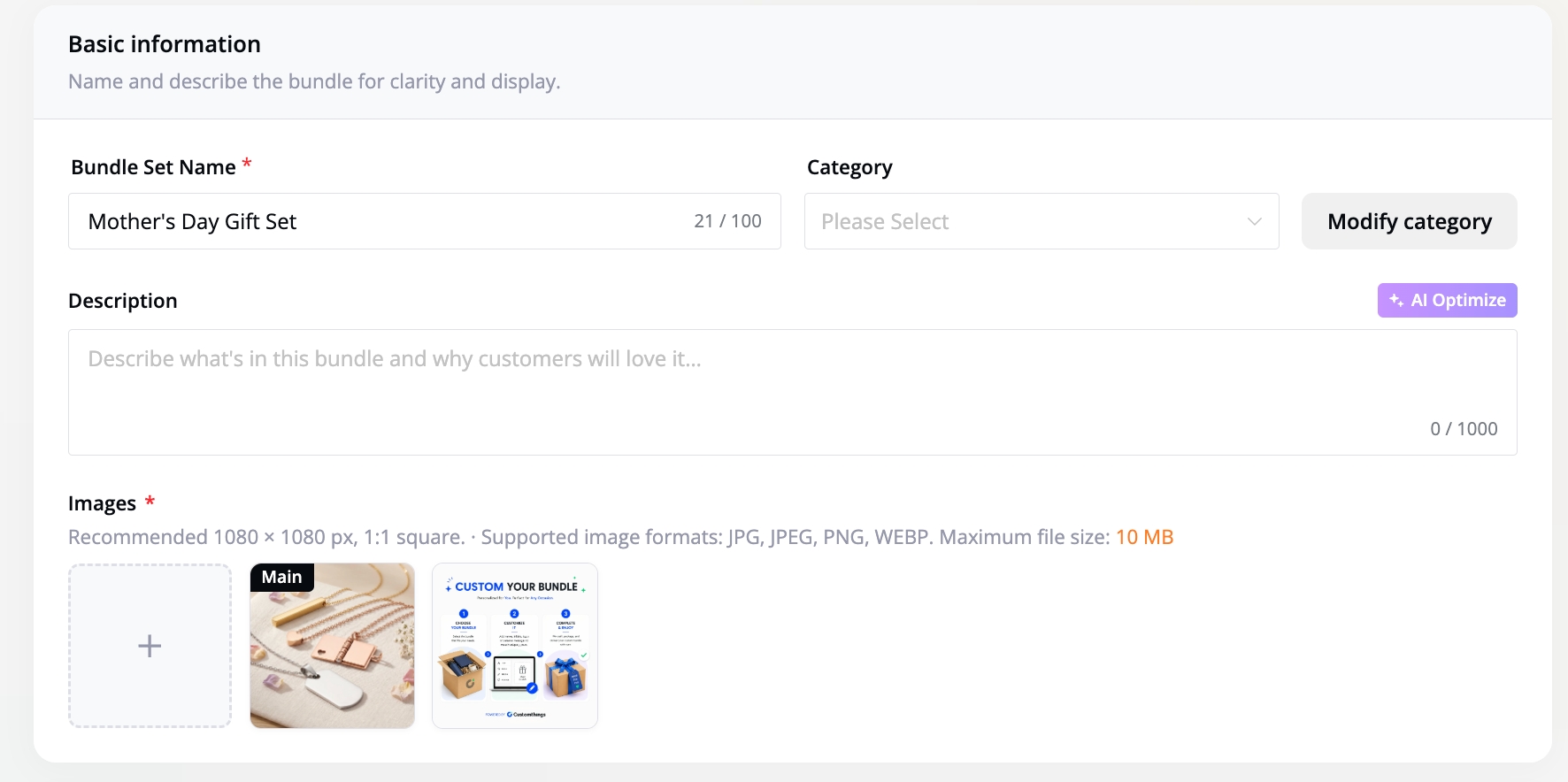
Step 2. Fill in the basic info
This is the parent listing your customers will see first.
- Bundle name (e.g., "Wedding Glassware Gift Set")
- Description
- Bundle main image: this is the cover photo on your storefront. The default illustration shown next to it is a built-in step diagram that explains the bundle ordering flow to customers; you don't need to upload anything to replace it.
Step 3. Add variants and link products
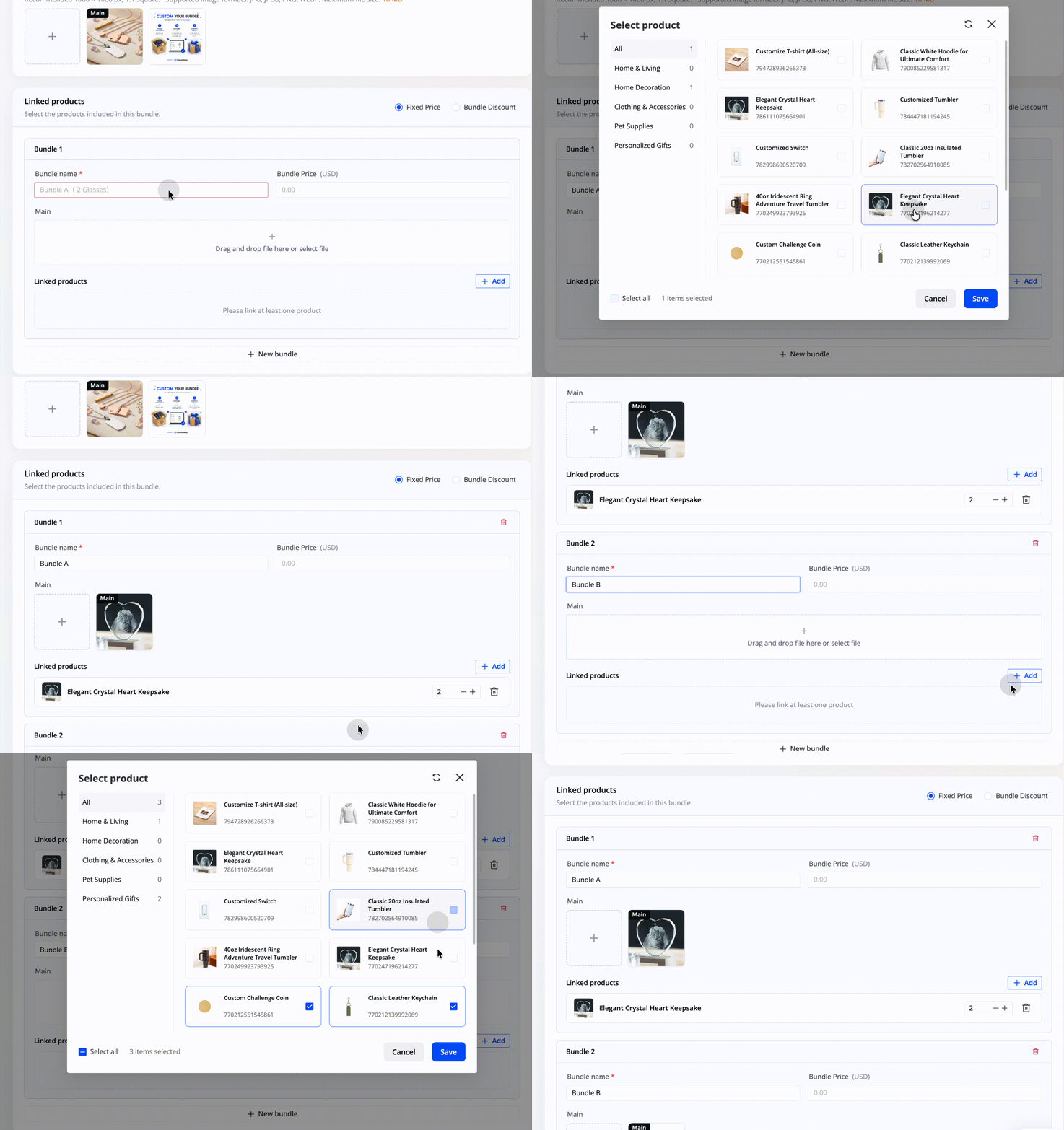
Each variant is one version of your bundle (e.g., Bundle A, Bundle B). For each variant:
- Variant name: short and clear (e.g., "Couple Set," "Family Set").
- Variant image: upload one yourself, or let the system pull the cover from the first product you link.
- Linked products: pick from your published catalog. You can add multiple products and set the quantity per SKU (for example, 2 wine glasses + 1 cake server).
Step 4. Set the bundle price
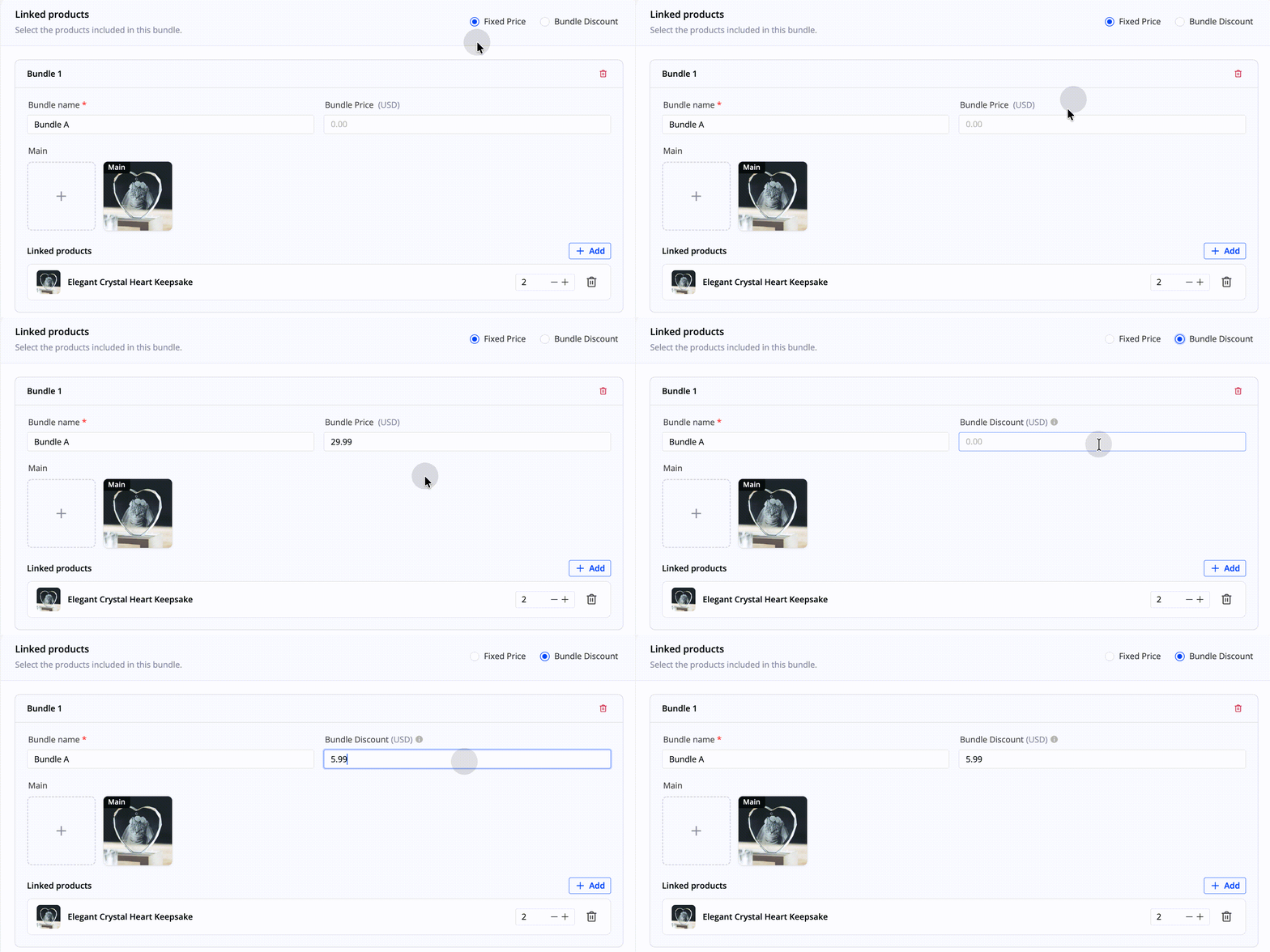
Two options:
- Fixed price: the bundle is sold at a flat rate you choose (e.g., $39.90), independent of the prices of the products inside.
- Bundle discount: the system adds up the prices of all linked products, then subtracts the discount you specify. If your linked products are priced at $0 (some customizable products are), the discount applies to that sum, so the final price might display as $0 unless you've priced the components.
Step 5. Publish
Click Publish. The bundle will appear in your product list with the type marked as Bundle Set, and it goes live on your storefront immediately.
What Customers See
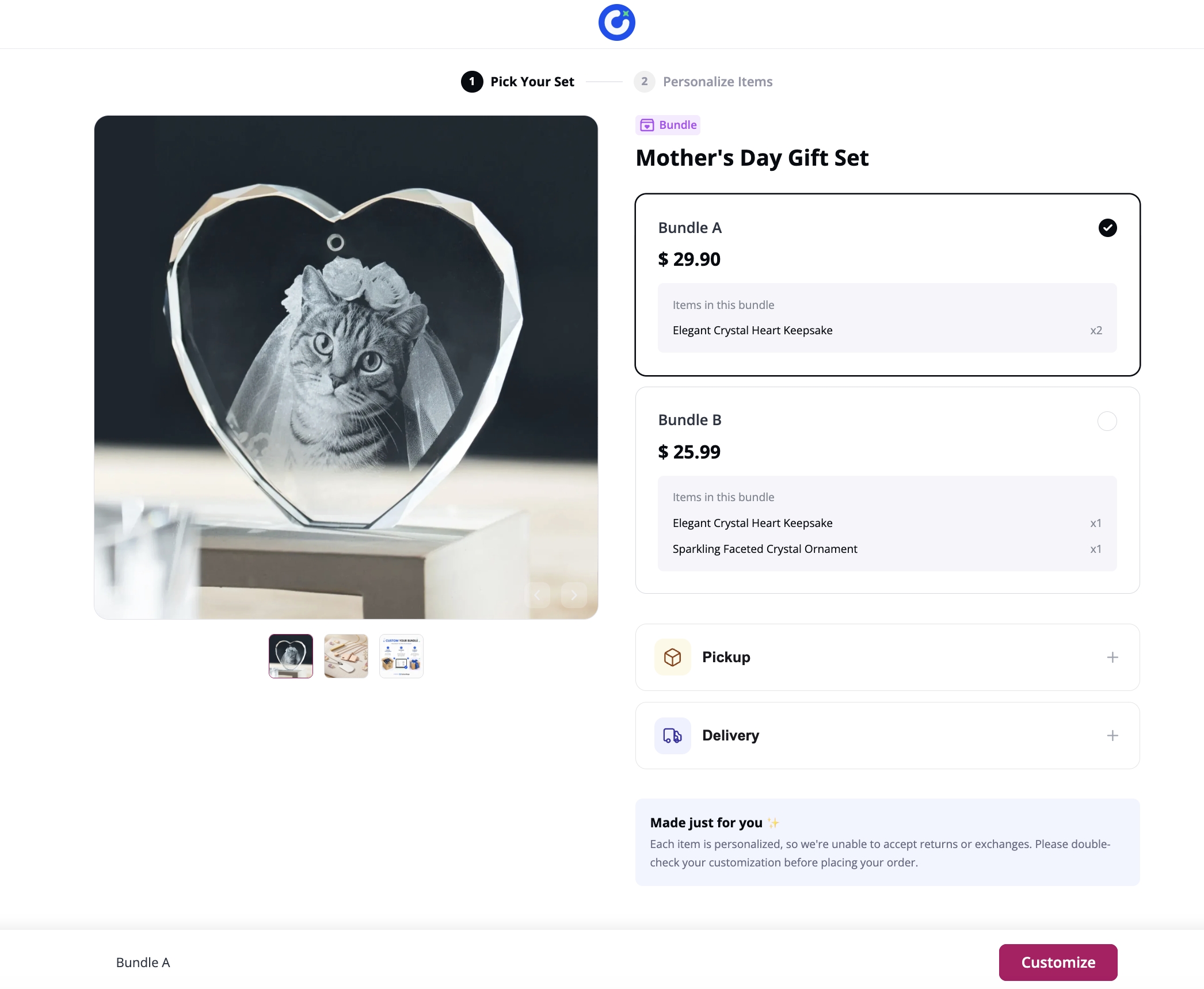
On your storefront, the bundle listing shows the main bundle image and a step diagram that walks customers through the ordering flow. Once they pick a variant, they see the variant image and the price (with discount applied if you used Bundle Discount).
 | 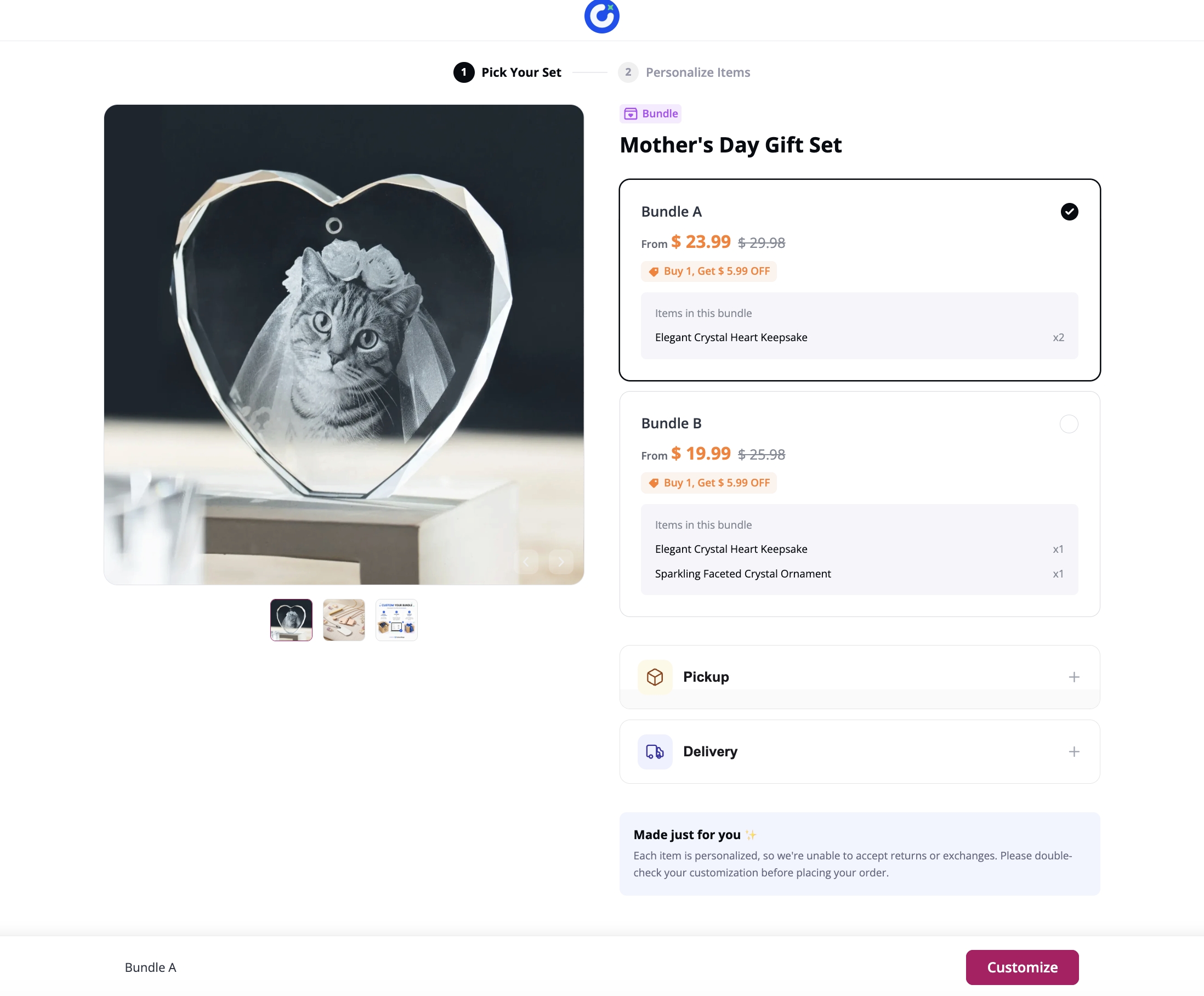 |
From there, the flow depends on what's inside:
- Standard products in the bundle: customers pick the specific size, color, or other variant options.
- Customized products in the bundle: customers complete the design before continuing.
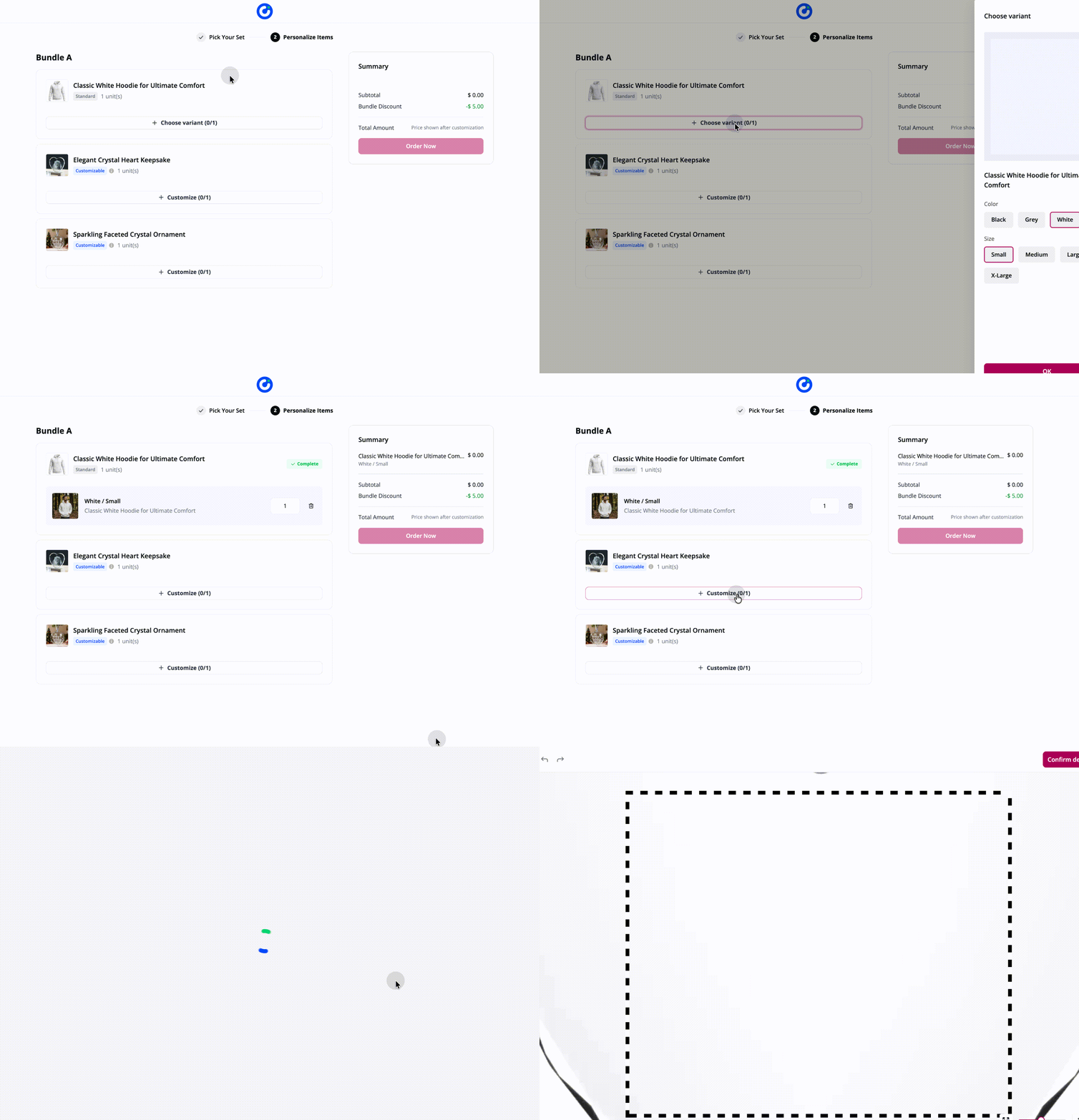
Only after every item is selected or customized can the customer move to checkout. The order page lists each item in the bundle and the bundle's total price.
Tips
- Bundles are a low-effort way to test cross-sell ideas. If you already sell complementary products separately, try bundling them at a small discount before investing in new SKUs.
- Use the variant layer the way Shopify or Etsy use sizes: one bundle listing, several configurations (e.g., "For 2 People" vs. "For 4 People"). It keeps your storefront tidy.
- If your linked products use different processing methods (one laser, one print), the bundle still works. Each product keeps its own production parameters and routes correctly when the order arrives.
Related: Create Your First Product, How Customthings Works.